

Description
Download Multi Monitor Mouse – Free, Secure Tool for Effortless Screen Navigation on Windows 10 & 11
Why Multi Monitor Mouse Is a Game-Changer for Multi-Screen Users
For professionals, content creators, and power users who rely on multiple monitors, navigating between screens can often become a tedious and time-consuming task. The standard method of dragging your mouse from one display to another—especially when monitors are spaced far apart—can lead to wrist strain and decreased efficiency. This is where Multi Monitor Mouse steps in as a lightweight yet powerful solution. Designed specifically for users running Windows 10 and Windows 11, this free software redefines how you interact with multi-monitor setups by introducing a simple yet revolutionary feature: instant cursor warping.
Instead of physically moving your mouse across long distances, you can now warp the cursor between screens with a single click or keyboard shortcut. This not only saves time but also reduces physical strain, making it ideal for long work sessions. The software is built with minimal overhead—its footprint is tiny, and it runs quietly in the background without slowing down your system. Whether you're editing videos, managing spreadsheets across multiple screens, or multitasking between design tools and communication apps, Multi Monitor Mouse ensures smooth, intuitive navigation.
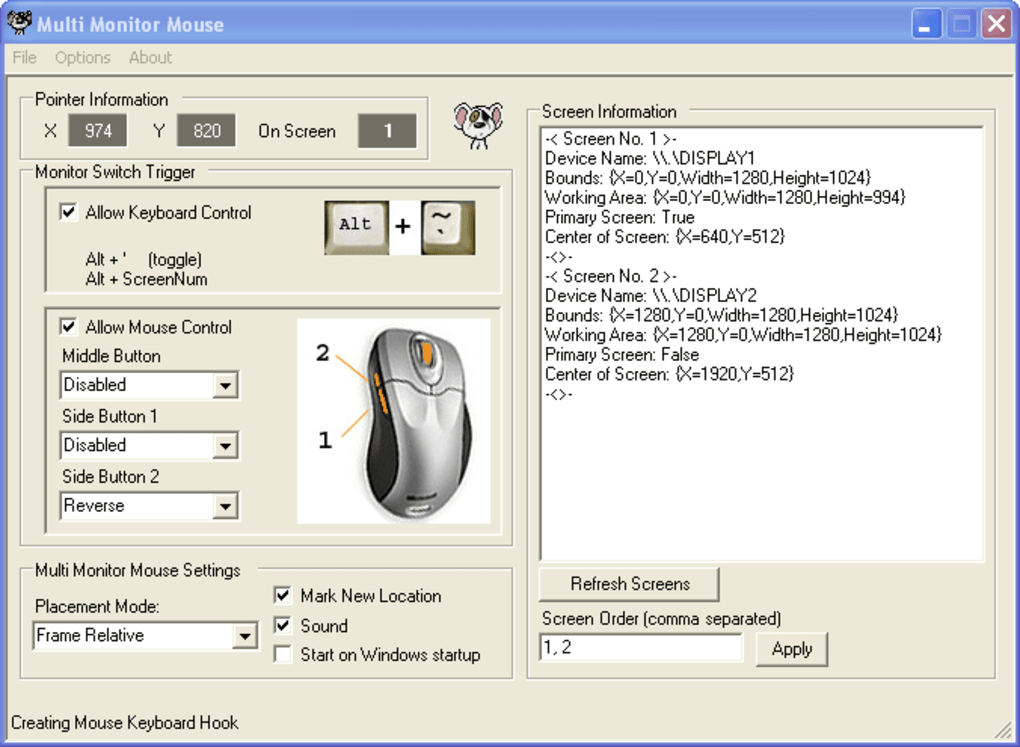
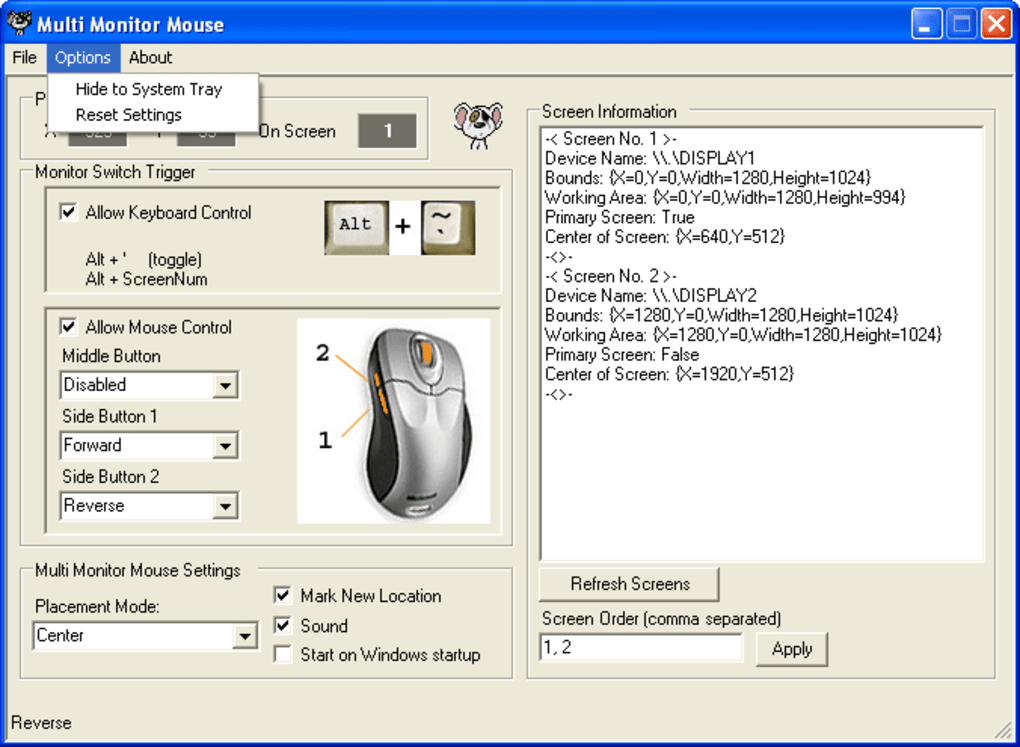
What sets this tool apart is its flexibility. You’re not locked into a one-size-fits-all approach. The app supports three distinct placement modes: Location Memory, Center, and Frame Relative. Location Memory remembers where your cursor was on the previous screen, allowing for precise repositioning—perfect for users who frequently switch between specific applications. Center mode places the cursor in the middle of the target screen, ideal for quick transitions. Frame Relative adjusts the cursor position based on the edge of the current screen, offering a more natural flow. With customizable warp button options (middle or side buttons on a five-button mouse), you can tailor the experience to your workflow. It’s a simple but brilliant upgrade to your multi-monitor setup.
Key Features That Boost Productivity and Comfort
- Instant cursor warping between multiple monitors with a single click or shortcut
- Supports three placement modes: Location Memory, Center, and Frame Relative
- Customizable warp button (middle or side buttons on a 5-button mouse)
- Configurable warp order (forward or reverse cycle through monitors)
- Lightweight design with minimal system resource usage
- Free to download and use on Windows 10 & 11
- Runs silently in the background without interruptions
- No complex setup—install and start using in under a minute
One of the standout features of Multi Monitor Mouse is its placement mode flexibility. The Location Memory mode is particularly useful for users who work with specific applications on designated screens. For example, if you’re running a video editor on your left monitor and a reference browser on the right, the cursor will reappear exactly where it was last used on the previous screen—eliminating the need to reposition manually. This feature alone can save dozens of seconds per day, which adds up significantly over time.
Another valuable aspect is the ability to define the warp order. You can set the cursor to cycle through your monitors in a specific sequence or reverse the order, depending on your preference. This is especially helpful in asymmetric setups where the monitors aren’t arranged in a straight line. The software also supports keyboard shortcuts, although it’s worth noting that these aren’t fully configurable—users can’t assign custom key combinations. Still, the default shortcut works reliably and provides a quick alternative to mouse clicks.
Performance-wise, Multi Monitor Mouse excels. It’s built to be lightweight, consuming almost no CPU or RAM. This ensures that even on older or low-end systems, the software runs smoothly without affecting other applications. Its seamless integration with Windows 10 and 11 means there are no compatibility issues, and it updates quietly in the background. The interface is clean and minimal, with no unnecessary pop-ups or ads—just a straightforward, no-frills tool that gets the job done. For anyone serious about optimizing their multi-monitor experience, this is a must-have addition to their toolkit.
Installation, Usage, and Compatibility
Getting started with Multi Monitor Mouse is a breeze. The software is free to download and available directly from its official website. The installation process is quick and straightforward—just download the installer, run it, and follow the on-screen prompts. No complicated configurations are required, and the app runs immediately after installation. Once launched, Multi Monitor Mouse appears as a small icon in the system tray, ready to be configured.
To set up your preferred warp behavior, right-click the icon and select “Settings.” Here, you’ll find all the customization options. Choose your preferred warp button—typically the middle or one of the side buttons on a five-button mouse. You can also select the placement mode (Location Memory, Center, or Frame Relative) and define the warp order (forward or reverse). The software remembers your settings across restarts, so you won’t need to reconfigure every time you boot up.
Usage is intuitive: simply click your chosen warp button, and the cursor instantly jumps to the next monitor in your defined sequence. If you're using a mouse with multiple buttons, you can even assign different actions to different buttons—though the default setup works perfectly for most users. The tool works seamlessly with all standard Windows applications, including web browsers, office suites, design software, and games.
Multi Monitor Mouse is compatible with Windows 10 and Windows 11 (both 32-bit and 64-bit versions). It does not support macOS, Android, or iOS, so users on non-Windows platforms will need to explore alternative solutions. However, for Windows users with dual or multi-monitor setups, this software delivers exceptional value. It’s also worth noting that while the app is free, it doesn’t include in-app purchases or premium features—what you see is what you get. The developers have kept the software ad-free and open, making it a trustworthy choice for everyday use.
Pros and Cons: Is Multi Monitor Mouse Right for You?
Pros
- Free to download and use—no hidden costs or subscriptions
- Extremely lightweight and efficient—minimal impact on system performance
- Flexible placement modes for precise cursor control
- Simple setup with intuitive configuration options
- Supports customizable warp button and order settings
- Runs silently in the background without interruptions
Cons
- Keyboard shortcut is not customizable—limited to default key combination
- Requires a five-button mouse for full functionality (side buttons)
- No support for macOS, Android, or iOS platforms
- Limited to Windows 10 and 11—no support for older Windows versions
Frequently Asked Questions (FAQ)
Is Multi Monitor Mouse free to download?
Yes, Multi Monitor Mouse is completely free to download and use. There are no in-app purchases, subscriptions, or hidden fees. The software is open and ad-free, making it a reliable choice for users on a budget.
Does Multi Monitor Mouse work on Windows 11?
Yes, Multi Monitor Mouse is fully compatible with Windows 11. It runs smoothly on both 32-bit and 64-bit versions of the operating system.
Can I use Multi Monitor Mouse with a standard mouse?
While the software works with any mouse, it’s optimized for five-button mice. The full functionality—especially using side buttons for warping—requires a mouse with at least five buttons.
Is the keyboard shortcut customizable?
Currently, the keyboard shortcut is not customizable. It uses a default key combination that cannot be changed in the settings.
Does Multi Monitor Mouse support macOS or Linux?
No, Multi Monitor Mouse is only available for Windows 10 and Windows 11. It does not support macOS, Linux, Android, or iOS.
Final Verdict: A Must-Have Tool for Multi-Monitor Users
If you’re using multiple monitors and find yourself constantly stretching your mouse across screens, Multi Monitor Mouse is the perfect solution. It’s a lightweight, secure, and free tool that dramatically improves navigation efficiency. With customizable placement modes, flexible warp button options, and seamless integration with Windows 10 and 11, it delivers real value without complexity.
While it has minor limitations—like non-customizable keyboard shortcuts and a dependency on five-button mice—it’s still one of the best free tools available for multi-screen users. For professionals, remote workers, and digital creatives, the time and effort saved can be substantial. Whether you're managing complex workflows or just trying to reduce wrist strain, this software is worth downloading.
Download Multi Monitor Mouse today and transform your multi-monitor experience into a smooth, efficient, and enjoyable workflow.
Guides & Tutorials for Multi Monitor Mouse
How to install Multi Monitor Mouse
- Click the Preview / Download button above.
- Once redirected, accept the terms and click Install.
- Wait for the Multi Monitor Mouse download to finish on your device.
How to use Multi Monitor Mouse
This software is primarily used for its core features described above. Open the app after installation to explore its capabilities.
User Reviews for Multi Monitor Mouse 0
No reviews found





